


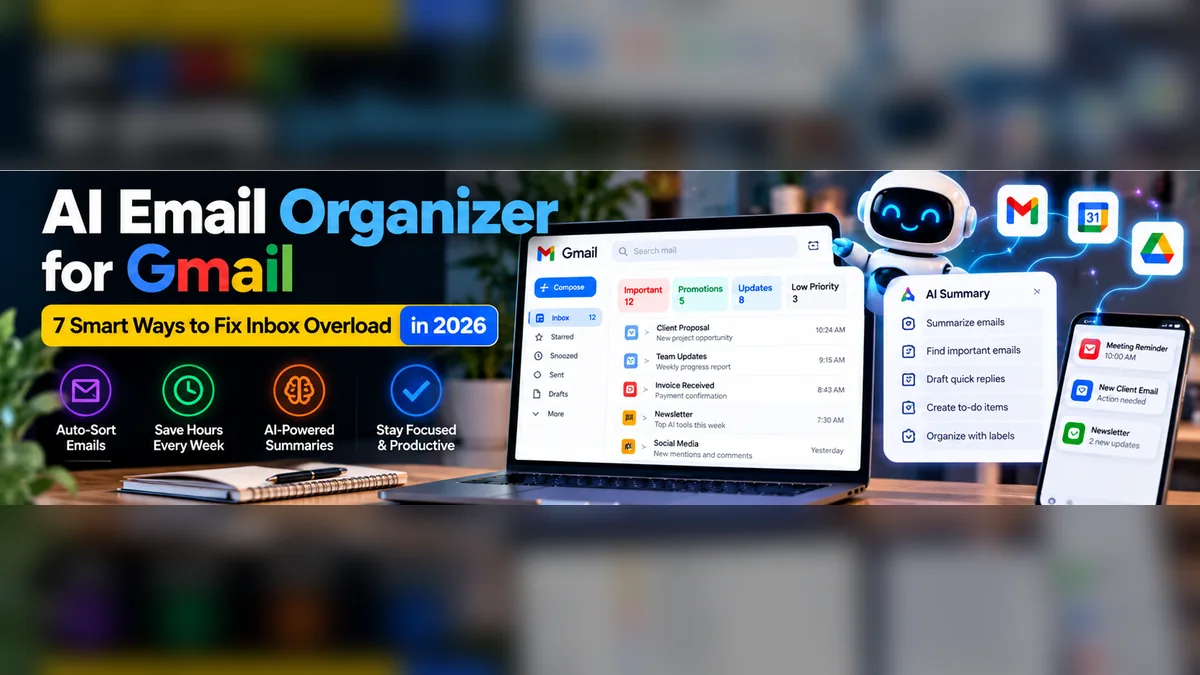
An AI email organizer for Gmail can help professionals deal with crowded inboxes, long threads, repeated messages and missed follow-ups. The useful question is not whether AI can write an email. Instead, ask whether a particular tool solves the real problem you have—priorities, sorting, summaries, cleanup or reply drafting—without asking for more account access than necessary.
To make the choice easier, this guide explains seven practical workflows, the different types of tools available in 2026, and a safe starting checklist. We have not personally tested every third-party product mentioned.
What Is an AI Email Organizer for Gmail?
An AI email organizer is a Gmail-compatible feature, add-on or client that helps with tasks such as categorizing messages, generating summaries, finding relevant information or suggesting replies. For example, some tools automate labels and rules, while others act as writing assistants. Those are not the same job.
First, check what Gmail’s existing labels, filters, categories and built-in AI features already do. A traditional filter may be enough for predictable senders.
7 Smart Ways to Use an AI Email Organizer for Gmail
1. Put Actionable Messages First
Separate email that needs a response from newsletters and informational messages. As a result, priority categories can make missed client requests less likely, but they require review while the system learns your preferences.
2. Summarize Long Threads
AI summaries can reduce time spent rereading complex conversations. However, use them to find decisions and outstanding questions, then read the original messages before making important commitments.
3. Group Similar Emails Automatically
An AI email organizer for Gmail may categorize leads, invoices, meeting notices and general updates. Instead, start with a small number of categories that people can actually use, rather than generating dozens of confusing labels.
4. Draft Responses in Your Tone
Use AI to create an initial reply to routine questions. Then, check names, dates, prices and attachments before sending. A drafting assistant should not invent approvals or policies.
5. Reduce Newsletter Noise
Sometimes the best improvement is unsubscribing, archiving or creating a digest rather than applying a sophisticated AI model. For example, keep useful subscriptions, but remove sources that never matter.
6. Find Missed Follow-Ups
Similarly, track conversations where you are waiting for a reply or where a response is due. If a third-party service offers automated reminders, confirm how it determines which messages are actionable.
7. Create a Daily Inbox Brief
For instance, a short summary of urgent messages, calendar-related threads and pending responses can make the morning routine easier. Avoid sending confidential excerpts to unapproved applications.
Which Type of Tool Should You Choose?
Current research from Clean Email’s AI inbox comparison and Leave Me Alone’s email organizer guide distinguishes several useful approaches.
| Your problem | Tool category to consider |
|---|---|
| Long Gmail threads | Built-in AI summaries or assistant |
| Important mail buried | Priority triage |
| Wrong labels | AI labeling and smart filters |
| Too many newsletters | Unsubscribe and cleanup tools |
| Slow routine replies | Drafting assistant |
| Complex recurring workflow | Approved email automation |
AI Email Organizer Tools to Research
Gmail with Gemini: check the built-in options available to your account before connecting another service. Access depends on plan and rollout.
Shortwave: a Gmail-oriented email experience with AI features such as summaries and natural-language organization; confirm plan limits on the official site.
Fyxer: a third-party option for inbox prioritization and drafting; review its requested Gmail permissions at the vendor website.
Clean Email: a cleanup-oriented approach for newsletter overload and organization rather than a full replacement for Gmail’s writing assistance.
However, do not assume features, pricing or a free tier remain unchanged; vendor plans update frequently.
Privacy Checklist Before Connecting a Gmail AI Tool
- Read what account permissions the tool requests.
- Check whether it can send or delete mail, not only read it.
- Review retention and model-training policies.
- Use organizational approval for work or customer data.
- Keep human confirmation for outbound responses and destructive actions.
- Know how to revoke access if the tool is no longer used.
Google’s third-party account access help explains how users can review access granted to connected applications.
A 20-Minute Setup Plan
- Identify your main inbox problem.
- Archive or unsubscribe from obvious noise.
- Try built-in Gmail organization first.
- Test one AI feature on lower-risk messages.
- Check its mistakes during the first week.
- Measure time saved against review overhead.
Who Should Skip an AI Email Organizer?
If you receive only a few messages a day or already have reliable rules, another subscription may add complexity without value. Teams handling sensitive customer, health, financial or legal information should check access controls before connecting any third-party inbox assistant.
For broader business workflows, see our AI workflow automation examples and practical small-business AI guide.
Start With Gmail’s Built-In Organization Tools
Before giving a third-party AI application access to an inbox, use the tools Gmail already provides. For many people, labels, filters, stars and search operators can remove a surprising amount of repetitive work at no additional software cost. These rules are particularly useful when the sender, subject pattern or recipient address stays consistent.
Step 1: Create a Few Action-Based Labels
For example, a simple setup could include Reply Today, Waiting for Reply, Invoices and Newsletters. Each label should represent a useful next action. Otherwise, overly detailed labels can create more filing work than they remove.
Step 2: Build Rules for Predictable Messages
For example, an accounts inbox may receive invoices from a known billing address. A Gmail filter can apply the Invoices label based on the sender. In fact, this does not require AI to read every message. Verify the rules with sample emails before choosing options that skip the inbox or archive automatically.
Step 3: Define What Requires Human Attention
Customer complaints, payment disputes, security alerts and unexpected requests should not be silently archived. A good system makes these messages easier to notice, even if an AI assistant later prepares a summary or draft reply.
Google’s official Gmail filter instructions explain how to manage ordinary inbox rules. Start here and add AI only when rules cannot reliably handle the task.
Three Realistic AI Email Workflows for Small Businesses
Example 1: An Agency Managing Client Inquiries
Imagine a web-development agency receiving service inquiries, meeting requests, newsletters and project updates. A useful AI workflow might identify new sales leads, draft a short acknowledgement and suggest the next action. However, the assistant should not quote a project price or promise a deadline until someone has reviewed the requirements.
For this team, success means faster human triage and fewer missed inquiries. It does not mean automatically replying to every message as quickly as possible.
Example 2: A Founder Handling Supplier Emails
Meanwhile, a small online store may receive delivery notices, purchase confirmations and supplier questions. The founder could use a daily summary to see which shipments are delayed and what information is still missing. The AI should link back to original emails so purchase quantities and delivery dates can be verified.
Because supplier details can affect costs and stock availability, any payment instruction changes should be checked directly through a trusted channel instead of accepted from an AI summary.
Example 3: A Consultant Who Travels Frequently
Likewise, a consultant may have only a few opportunities to check email. A summary of requests needing action could help them prepare replies between meetings. The workflow should distinguish “the client asked for confirmation” from “the consultant confirmed,” since confusing these can cause real scheduling problems.
These are illustrative examples, not measured case studies or claims that a particular product delivers these outcomes automatically.
Useful Prompts for AI-Assisted Email Organization
In practice, prompts are most useful when they limit what the assistant is allowed to assume. Run them only inside an approved tool that has appropriate access to the required messages.
Prompt 1: Daily Priority Brief
Summarize my unread messages from today into three groups: urgent response needed, response needed this week, and informational only. For every item, show sender, subject, received date and why it belongs in that group. Do not send, archive, delete or mark any message as read. Do not invent deadlines; say when none was stated.
Prompt 2: Accurate Thread Summary
Summarize this email thread in five points: the original request, key decisions, unresolved questions, promised actions and deadlines explicitly mentioned. Attribute decisions to the correct sender and quote dates exactly as written. If information conflicts, flag the conflict instead of choosing one version.
Prompt 3: Draft Without Sending
Draft a friendly and concise reply using only information from this conversation and the approved policy text. Acknowledge the customer’s question, explain what we know and ask for any missing detail. Do not promise discounts, refunds or delivery dates not supported by the source. Leave the reply as a draft for human review.
Even a good prompt cannot compensate for missing context or unsuitable permissions. Check outputs before relying on them.
Comparing AI Email Organizers: A Practical Scorecard
To compare fairly, run the same seven-day test with candidate tools instead of relying on marketing screenshots. Look for accuracy, speed, control and data-handling clarity.
| Test | What to measure | Why it matters |
|---|---|---|
| Priority sorting | How many important emails were misclassified? | Missed client messages have a real cost |
| Thread summaries | Did it capture decisions and dates correctly? | A fluent summary can still be wrong |
| Draft quality | How much human editing was required? | Drafting only helps if it saves time |
| Permissions | Can you limit read, send and delete access? | Reduces unnecessary risk |
| Workflow compatibility | Does it fit your existing Gmail labels? | A second inbox may add complexity |
| Total price | Monthly cost per user and required plan | Helps avoid hidden subscription costs |
Be cautious when comparing trial plans: some features may be limited, and certain functions may depend on the Google Workspace account rather than the add-on alone. Always check current vendor documentation.
How to Measure Time Saved Without Guessing
Before trying an AI email organizer for Gmail, estimate how much time the team currently spends on triage, summaries and drafting. During the trial, record how much time was spent correcting suggestions and recovering from mistakes. Therefore, an assistant that drafts rapidly but forces heavy review may have a smaller benefit than its promotional claims imply.
Track simple metrics: actionable messages missed, average time to identify a priority email, minutes spent on first-pass triage, percentage of drafts that required major editing and total subscription cost. A small team may discover that better native filters provide more value than an additional AI product.
Security Risks Specific to Email AI Tools
Overly Broad Access
Some email assistants request access to read, modify or send messages. Importantly, do not treat these permissions as interchangeable. Read each access request and determine whether the tool needs that capability for the workflow you are actually adopting.
Instructions Hidden in Email Content
An external email could contain text designed to manipulate an AI assistant. In other words, treat message bodies as untrusted information, not instructions that should override the user’s request. Avoid granting automatic authority to forward confidential messages or execute account changes based only on email content.
Account-Level Mistakes
Bulk archiving, deleting or relabeling can be difficult to undo when thousands of emails are affected. Instead, trial automation on a limited label or test mailbox first. Keep destructive actions under human control until you have dependable recovery steps.
Organization and Client Privacy
If messages contain client information, contracts, sensitive files or personal data, check your organization’s rules, vendor data policies and retention settings before connecting a new service. Google’s third-party access management guide explains how to review and revoke connections.
A Weekly Inbox Workflow That Is Easy to Maintain
On Monday, review your labels and filters for obvious mistakes. Each day, scan the actionable queue, review AI summaries against important threads, and draft responses with human approval. Finally, on Friday, check the Waiting for Reply category and archive or unsubscribe from noise that accumulated during the week.
Do not add sophisticated multi-step automations until this basic routine works consistently. The goal is a smaller, clearer set of decisions for a human—not a system that hides messages from view.
Frequently Asked Questions
Can AI organize Gmail automatically?
Although some tools can label, triage or route messages, capabilities depend on the product and permissions you allow.
Is there a free AI email organizer for Gmail?
While some options have limited free features or trials, check current offers and limits directly.
Should I let AI send emails for me?
For business communication, it is safer to require a review step until the workflow has proven reliable.
Final Thoughts
The best AI email organizer for Gmail is the one that fixes a real inbox problem with the fewest extra permissions and the least review work. Start with basic organization, add only the automation you need, and protect access to business communication.

